
 ChatGPT
 Claude
 Gemini
 Perplexity AI
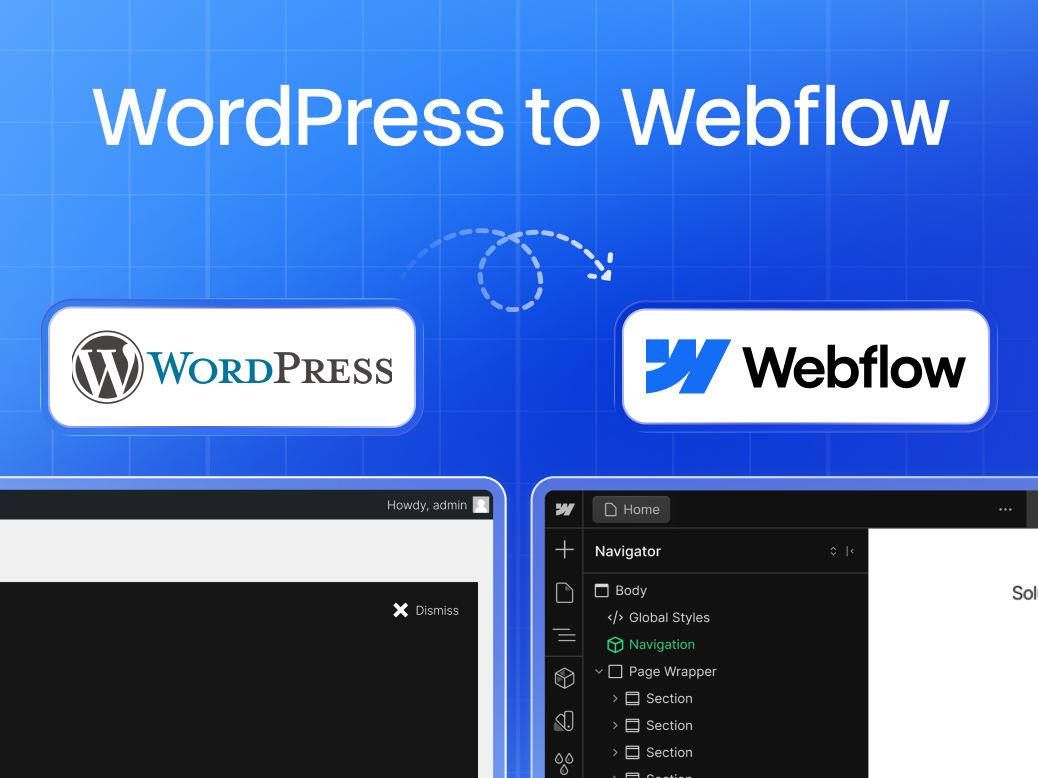
Most WordPress-to-Webflow migrations go wrong in the same way.
The design is done, the client is excited, and someone hits publish, then over the next six weeks, organic traffic drops 30%, rankings for core keywords disappear, and the first Google Search Console report looks like a disaster. It wasn't a Webflow problem. It was a migration problem.
Moving platforms is one of the highest-risk SEO events a site can go through. Not because Webflow is bad for SEO, it isn't; Webflow's clean HTML output, fast CDN, and built-in sitemap generation actually give you a better technical foundation than most WordPress setups.
The risk comes from the migration itself: broken redirect chains, lost on-page metadata, orphaned backlinks, and a Google recrawl that doesn't happen the way you expected.
This guide covers the exact process we use at Windmark for every WordPress-to-Webflow migration, the audit steps, the redirect mapping, the launch protocol, and the 30-day monitoring routine. If you follow it, you will not lose rankings.
Why WordPress-to-Webflow migrations lose SEO (and what to do instead)
There's a common misconception that switching platforms automatically causes a ranking drop. It doesn't, at least not by itself. What causes drops is the stuff that changes during the migration: URLs, page structure, metadata, internal links, and crawl signals.
WordPress URLs often include category slugs, dates, or custom structures that don't carry over when you rebuild in Webflow.
If `/blog/2023/04/webflow-vs-wordpress/` becomes `/blog/webflow-vs-wordpress/` with no redirect, every backlink pointing to that URL goes dead, every internal link 404s, and Google loses its indexed version of the page. Multiply that across a 200-page site and you can see why traffic tanks.
The second most common cause of drops is metadata loss. WordPress metadata lives in plugins (usually Yoast or RankMath).
When you move to Webflow, there's no automated import, every title tag, meta description, and Open Graph field needs to be set manually or via CSV import. Sites that skip this step launch with either blank metadata or Webflow's default placeholder text.
The third issue is timing. Some agencies run a soft launch, then add redirects after. That's backwards. Redirects need to be live before Google recrawls any old URLs.
Step 1: Run a full SEO audit before you touch anything
You need a complete picture of your current SEO standing before the migration starts. Once you go live on Webflow, anything you didn't document is gone.
Run a Screaming Frog crawl of your WordPress site. Export every URL, title tag, meta description, H1, canonical tag, and HTTP status code. This is your migration baseline, you'll use it to verify the Webflow build matches on every field.
In parallel, pull your Google Search Console data. Export:
- Which pages get the most organic clicks
- Which queries drive traffic to which URLs
- Any existing crawl errors or coverage issues
Pull your Ahrefs or Semrush backlink report and filter for your highest-authority inbound links. These URLs absolutely cannot 404 on launch day. Flag them in your redirect sheet.
This audit takes half a day on a typical SaaS website. Don't skip it.
Step 2: Map every URL before you build
Create a redirect mapping spreadsheet with four columns: old URL, new URL, HTTP status, and notes. Every page on your WordPress site goes in column one. Every corresponding page on Webflow goes in column two.
Where the URL stays identical: `/about/` to `/about/`, no redirect needed. Where it changes, you'll set a 301. If a page is being removed entirely and there's no equivalent, map it to the closest relevant page rather than letting it 404.
A few things to watch:
- Category pages in WordPress (`/category/webflow/`) often don't exist in Webflow, map them to your blog index or a filtered collection view
- Tag pages are usually dead weight; map them to your homepage or blog
- Author pages exist in WordPress by default; unless you're rebuilding them in Webflow, these need to redirect
- Date-based archive pages (`/2022/06/`) should redirect to the blog index
This spreadsheet becomes the source of truth for your Webflow redirect setup and your QA process.
Step 3: Migrate your on-page SEO elements exactly
Webflow handles SEO at the page and collection item level. Each CMS collection item has an SEO tab where you set title tag, meta description, Open Graph title, Open Graph description, and Open Graph image. These don't auto-populate from your content, you have to fill them in.
For a site with 50 blog posts, that's 50 sets of metadata to enter. You have two options:
- Manual entry in the Webflow CMS, fine for smaller sites, tedious for anything over 30 pages
- CSV import via Webflow's CMS import, faster, but requires you to format your export from WordPress correctly
If you're doing the CSV route, export your Yoast metadata from WordPress using a plugin like Export All URLs (free) or WP All Export. Clean the CSV to match Webflow's import format, then import it to your collection. Spot-check 10% of pages after import to confirm the data landed correctly.
Beyond metadata, make sure these carry over:
- H1 tags, only one per page, contains the primary keyword
- Alt text on all images, Webflow has an alt text field on every asset
- Canonical tags, Webflow sets these automatically for collection pages, but check that they're not duplicating across filtered views
- Internal links, any links in your blog content that point to WordPress URLs will need updating to Webflow slugs
Step 4: Set up 301 redirects in Webflow
Webflow has a built-in redirect manager under Project Settings > SEO. You can add redirects one by one or import them via CSV. Use the CSV import, paste your full redirect mapping sheet directly.
The format is simple: old path, new path. Webflow handles the 301 status automatically.
After importing, test every redirect using a redirect checker tool (Redirect Checker or Screaming Frog in List mode). Paste your list of old URLs and confirm:
- Each returns a 301 (not a 302, not a 200, not a 404)
- The final destination is the correct new URL
- There are no redirect chains (old URL > redirect URL > another redirect > final URL)
Redirect chains kill PageRank flow. If you find any, clean them up so every old URL redirects directly to its final destination in one hop.
The Windmark Pre-Launch SEO Protocol
Every WordPress-to-Webflow migration we handle at Windmark goes through what we call the Pre-Launch SEO Protocol, a four-stage checklist we run in the 48 hours before a site goes live.
| Stage | What we do |
|---|---|
| Stage 1, Freeze | No content changes after the redirect sheet is finalised. Any last-minute copy edits go into a post-launch queue. |
| Stage 2, Verify | Run Screaming Frog against the Webflow staging URL. Compare the crawl output against your WordPress baseline. Every page should have a matching title tag, meta description, and H1. |
| Stage 3, Test | Test every redirect in the mapping sheet. Test your sitemap URL. Test robots.txt. Confirm no pages are set to noindex unless that's intentional. |
| Stage 4, Submit | Go live, then immediately: resubmit sitemap in Google Search Console, request indexing on your five highest-traffic pages, and set a 30-day monitoring calendar alert. |
This four-stage process has prevented SEO drops on every migration we've shipped. When clients skip it, usually because of launch pressure, something breaks.
Step 5: Sitemap, robots.txt, and Search Console
Webflow generates an XML sitemap automatically at `yoursite.com/sitemap.xml`. Before launch, check the staging sitemap and confirm it includes all the pages you expect and excludes any you've set to `noindex`.
Webflow also generates a default robots.txt. For most sites you won't need to customise it, but if you're using Webflow for a staging/preview URL and your production site is on a custom domain, make sure the staging URL is either password-protected or has a `noindex` on it, you don't want Webflow's staging domain indexed.
On launch day: go to Google Search Console, add your new domain as a property if it isn't already, verify ownership, and submit your sitemap.
Then use the URL Inspection tool to request indexing on your homepage and your five most important pages. Don't request indexing across the whole site at once, Google crawls at its own pace and manual inspection requests are rate-limited.
Step 6: Monitor for 30 days after launch
The first 30 days after a migration are when most problems surface. Google will recrawl your site over the weeks following launch, and it's during these recrawl cycles that orphaned links, broken redirects, and missing metadata get flagged.
Check Google Search Console every few days:
- Coverage report: look for any increase in 404 errors or "Excluded" pages that shouldn't be excluded
- Core Web Vitals: Webflow generally performs well here, but check that your LCP, FID, and CLS scores are within passing thresholds
- Search performance: your impressions and clicks may dip in the first 2–3 weeks as Google re-indexes, this is normal; what's not normal is a sustained decline past week 4
If you see a spike in 404s, cross-reference the URLs with your redirect mapping sheet and fix any gaps. If you see pages dropping out of the index, check whether they were accidentally set to `noindex` during the build.
One tool worth setting up before launch: a Google Analytics segment that filters for 404 page views. This catches broken internal links your crawl tool might have missed.
The three mistakes that cause ranking drops (and how to avoid them)
After running migrations for B2B SaaS companies and design-led brands, the same three issues keep coming up:
Launching before redirects are live
Every hour your old URLs return a 404 instead of a 301, you're losing the PageRank those URLs accumulated. The fix is simple: have redirects live on the Webflow staging domain before you switch your DNS, so there's zero gap.
Not accounting for pagination and filtered URLs
WordPress category pages and filtered views (tags, authors, dates) generate URLs that WordPress canonicalises automatically. Webflow doesn't have the same pagination structure. These old paginated URLs need redirects, they often get missed because they don't show up in a basic page list.
Forgetting to update backlinks from your own properties
If you have a newsletter, social bios, or any partner sites linking to old WordPress URLs, update them. Redirects handle SEO, but they add a hop. Links pointing directly to the new URL are cleaner.
Ready to migrate, without the risk?
If you're planning a move from WordPress to Webflow and want someone who's done this enough times to know where it breaks, that's exactly what Windmark's migration service covers, audit, build, redirect setup, and 30-day post-launch monitoring.
No dropped rankings, no scrambling after launch. Get in touch to talk through your site's specific setup.